Project Billing Overview
Workup supports the ability to generate and track project invoices on our Professional tier. Invoices can be generated based on Time and Materials and/or retainers. Detailed reporting is then available on revenue per customer and project profitability.
Configure Project Billing
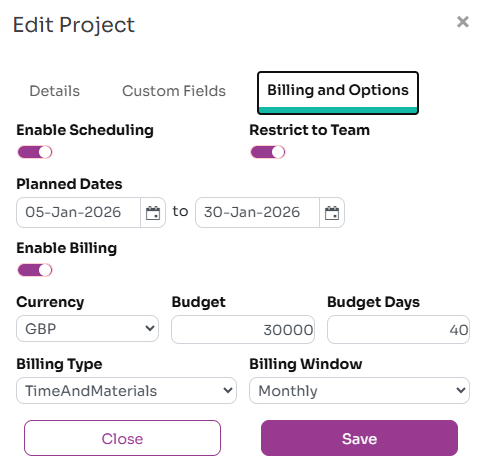
In order to generate invoices for a project, you need to enable billing on a project and set various billing details. Billing is only available for Customer projects. Edit the project details and enable billing on the Billing & Options tab.
Once billing is enabled for a project, you can set the following options:
- Currency: the currency to be used for the project and it's invoices
- Budget/Budget Days: informational fields to provide an idea of project budget as money and/or days
- Billing Type: how invoice values are created, can be Time and Materials, Fixed price, Retainer. It is also possible to have activties with their own billing type
- Billing Window: can be weekly or onthly. Monthly generates calendar month based invoices
- Project/Retainer Value: if Fixed price or Retainer is selected, then the value to be used in invoicing
Activity level billing
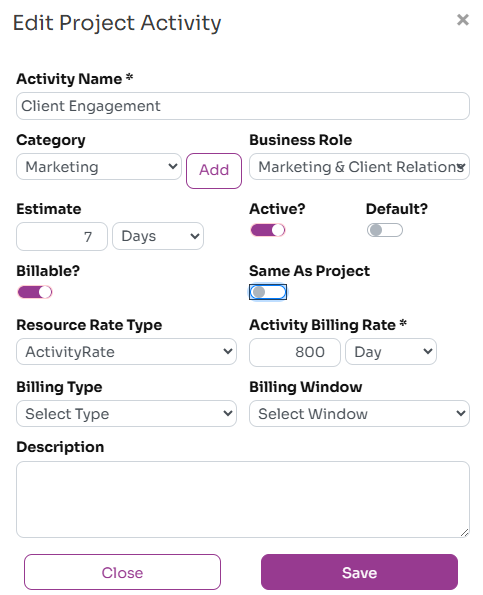
By default all activties are based on the project billing type. It is possible to combine different billing types for a project by specifying billing type on project activties. For example you could have a project that is retainer based but have one or more activties that are Time and Material based. An invoice for the project can contain both of these in one invoice.
Again, you can enter Billing Type, Billing Window and Value on the project activity.
Track Invoices
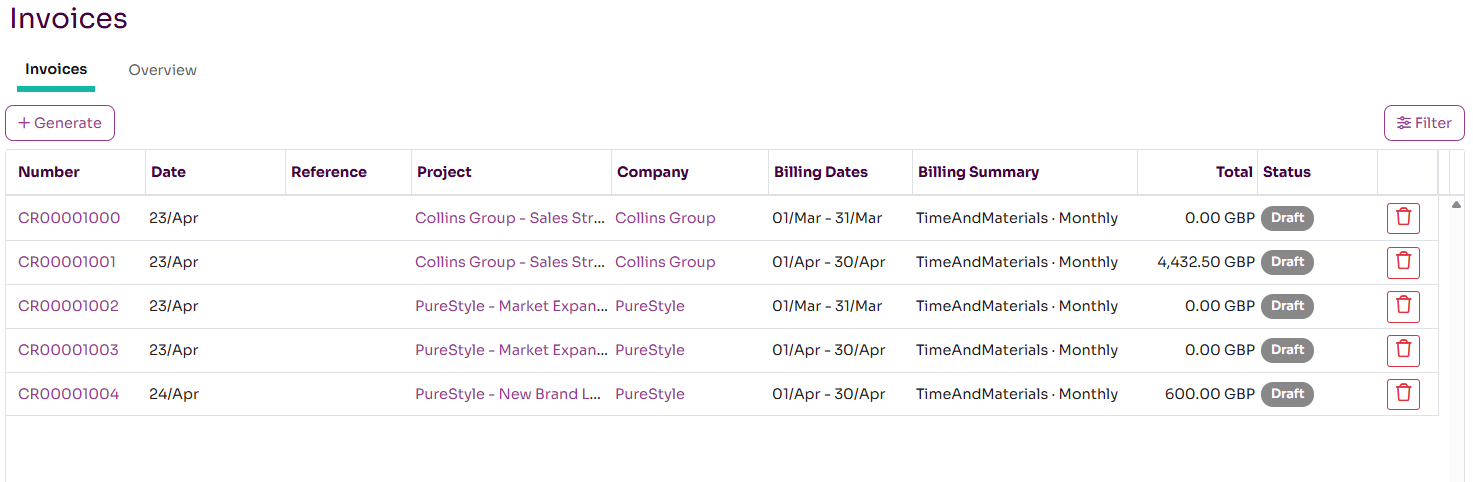
Invoices can be listed and tracked on the Project - Invoicing page. This lists invoices that have been generated by Workup. Invoices can be filtered by date, billing period, status, project and company. From this page you can generate new invoices and edit exiting invoices.
Generate Invoices
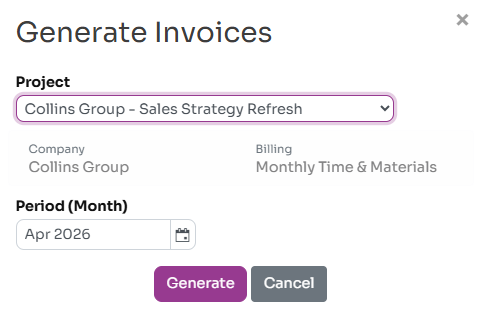
Currently invoices are generated manually rather than automatically. Press the Generate button to bring up the generate dialog. On here you select the project and the billing period and press generate. This will then generate the invoice and do all the required calculations. You can generate and regenerate draft invoices for the current period and it will update the existing invoice.
It is recommended that you ensure the billing details are properly configured on the Project, your Organisation (tax details, from contact details) and the project Customer (tax details and to contact).
View and Edit Invoices
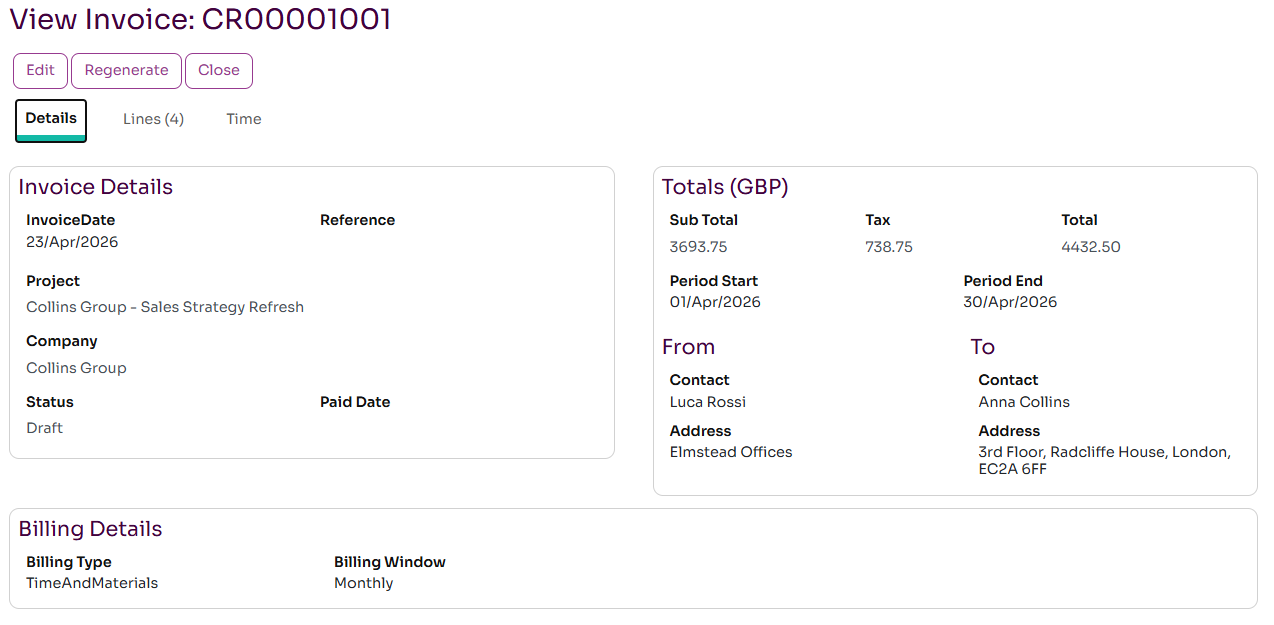
From the invoicing page you can click on an invoice to open it and edit it. The invoice detail page shows three tabs:
- Overview: the main invoice details
- Lines: one or more invoice lines for the invoice, often by activity
- Time: shows the actual billed time that has fed into the invoice
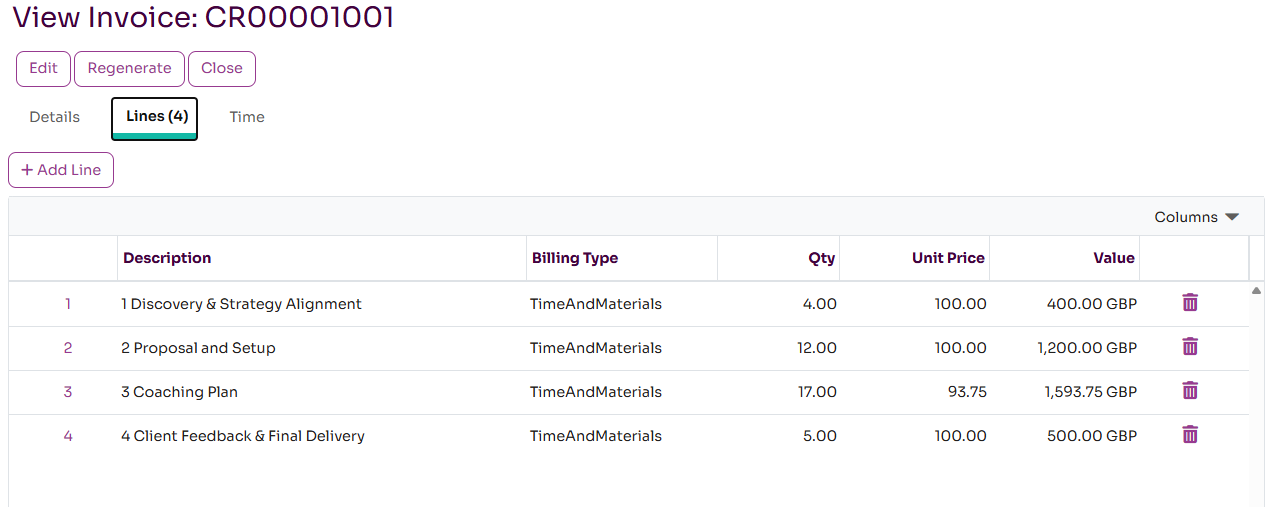
Invoice lines are generated per billing rate and/or activity so you can see a breakdown of how the invoice is made up. If activities have a seperate billing type to the project these will be shown on seperate lines. Each line will have a quantity (normally hours) and the billing rate.
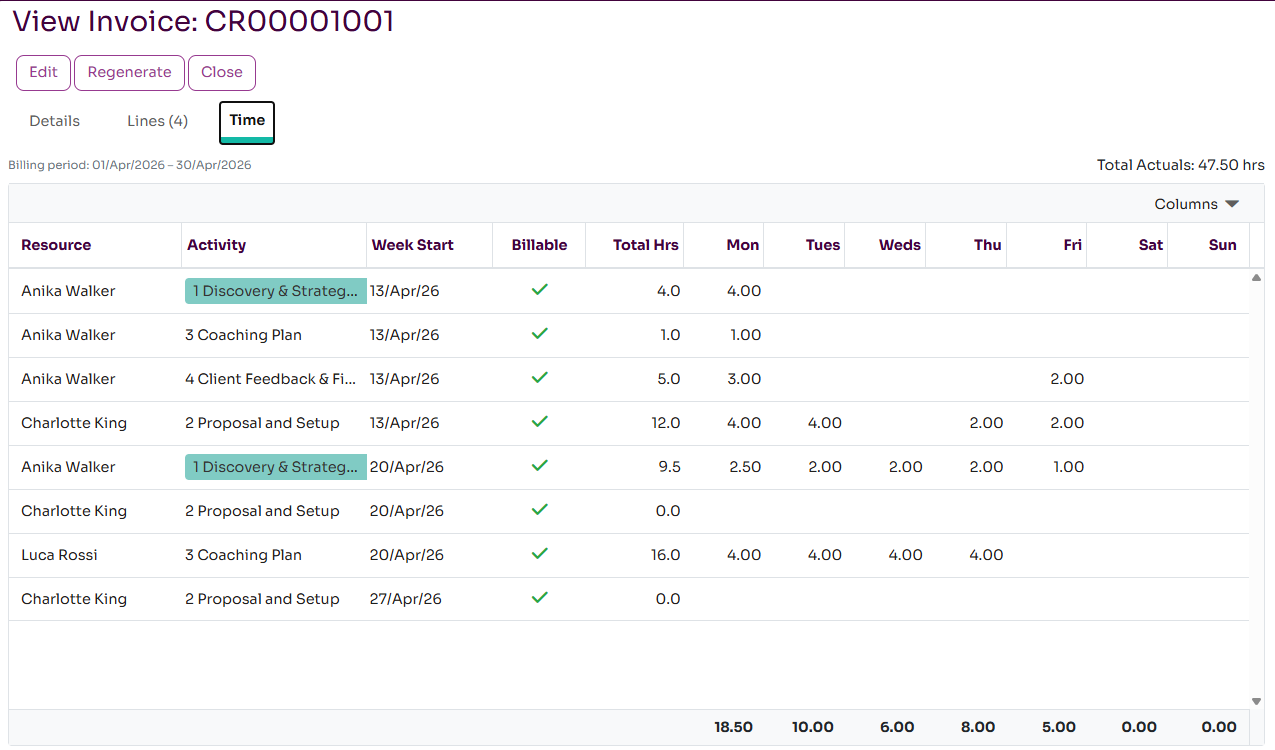
The Invoice - Time page shows daily timesheet data for the project in the billing period so you can analyse the time that went into the project for Time and Materials.
Configure Company Billing Details
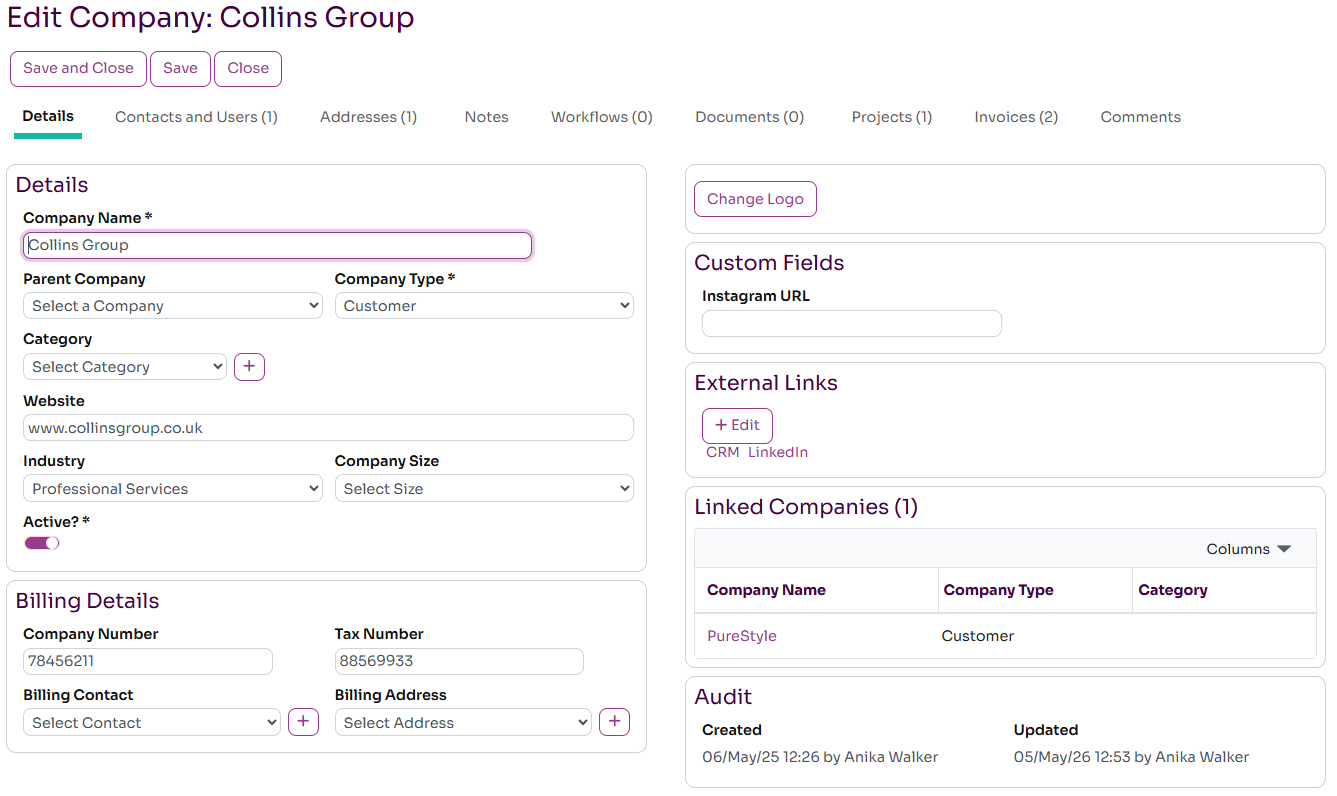
To ensure the invoice has all the required data, you should set billing details on the Company you are invoicing. In the Billing Details panel on the Company page you can fill in the following fields:
- Company Number: the official company id, eg from Companies House
- Tax Number: the VAT or Tax number for the company
- Billing Contact: the company contact to whom the invoice should be sent
- Billing Address: the address to whom the invoice should be sent