Overview
You can access your user settings by pressing the cog icon in the toolbar on the top right of your screen in Workup. Here you can set your timezone, your notification preferences and create an API Key for API access.
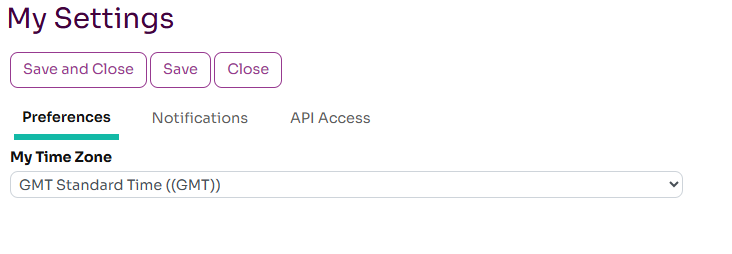
Setting Your TimeZone
Workup displays all times in your local time by using the timezone each user has configured in their settings. If no timezone is entered then times will be displayed in UK time. Choose the most relevant timezone for you from the list and hit Save.
Configuring Notifications
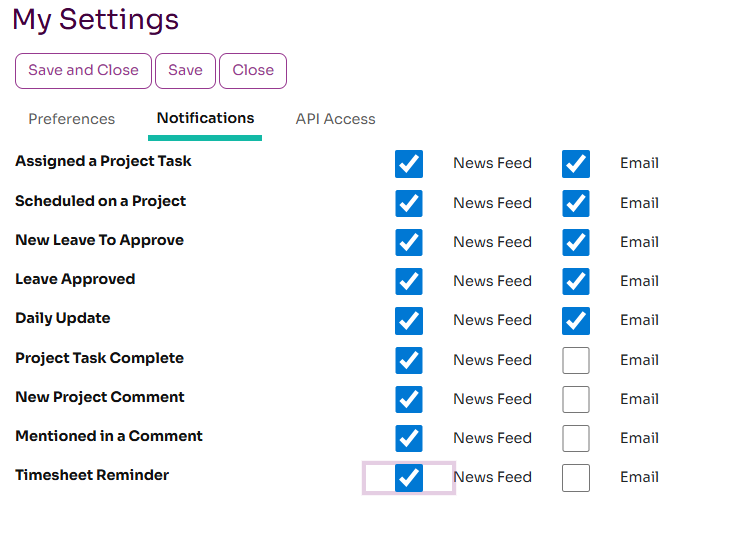
There are multiple notifications that you can choose to recieve in Workup. You can choose to receive these in your news feed, by email or both. On the Notifications tab in User Settings, select the notifications you wish to receive. The notifications available are:
- Assigned a Project Task
- Scheduled on a Project
- New Leave To Approve
- Leave Approved
- Daily Update
- Project Task Complete
- New Project Comment
- Mentioned in a Comment
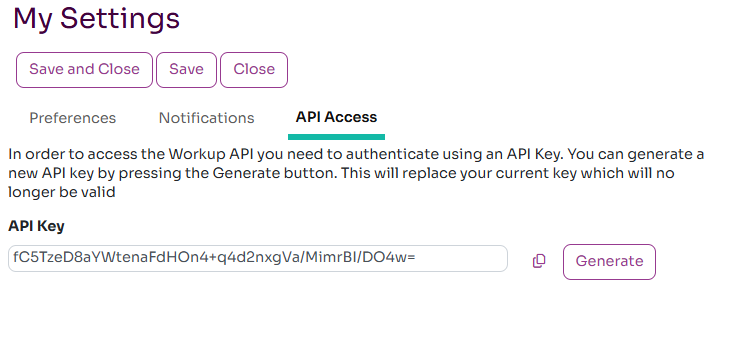
API Access
Workup has a comprehensive RES API that can be accessed on our Essentials and Professional plans. To access the API requires an API Key which is used to authenticate API requests. All API requests are accessed as a specific user and the API respects that user's permissions and data access.
Press the Generate button to generate an API Key for your user account. This can then be used in tools such as Zapier and n8n. If you Generate a key again, the previous key will no longer be valid and you will need to update and tools that have used that key.