AI Assistant
Our new AI Assistant adds powerful AI functionality to Workup. The AI Assistant has secure access to the majority of data within the application enabling you to ask simple or complex questions without having to navigate round a number of screens. The Assistant also has some access to create data within Workup such as project tasks and leave requests. We currently use OpenAI GPT-5 as the underlying LLM to support this capability.
Asking For Data
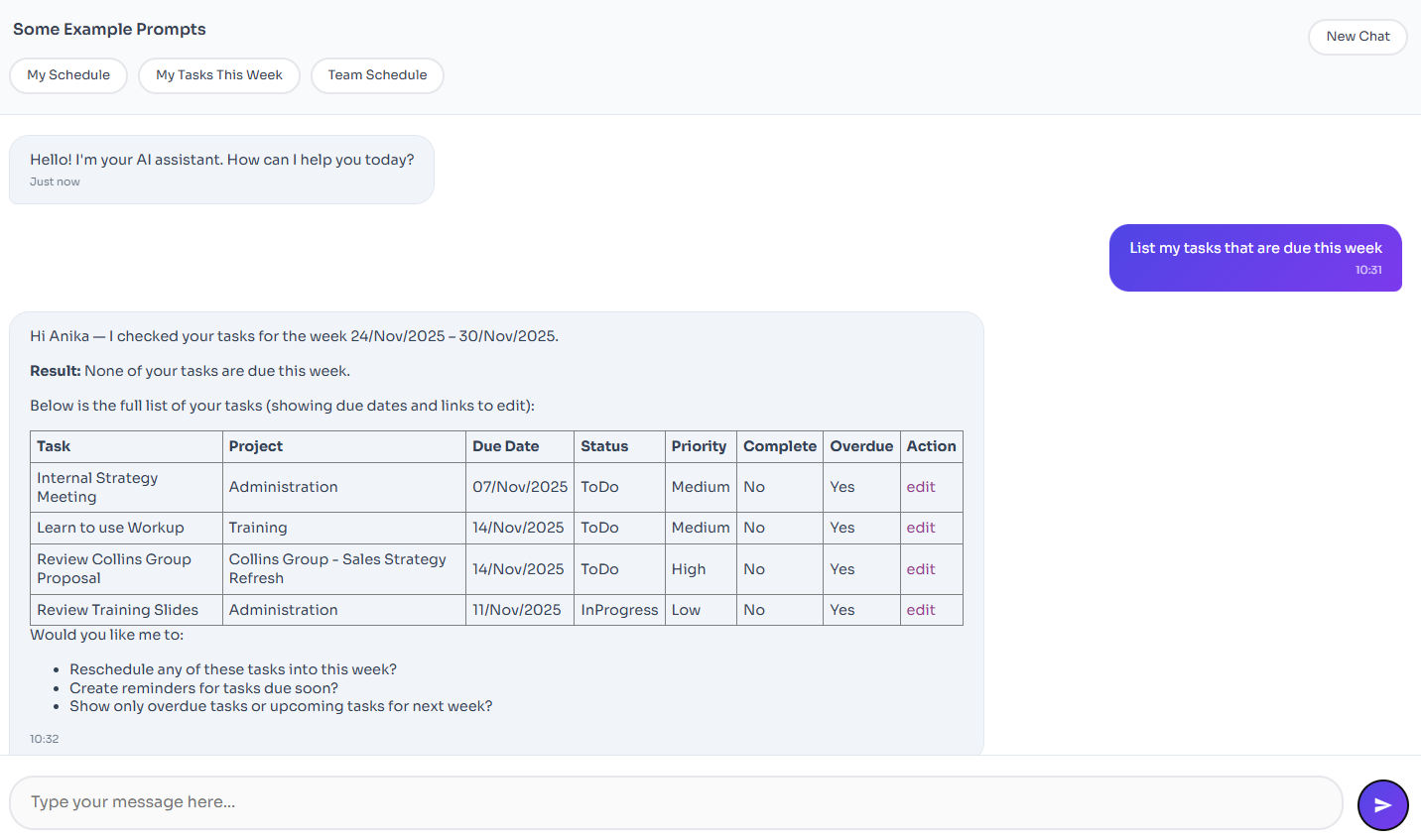
The AI assistant knows who you are so can ask questions like "What are my tasks this week". It also knows what team you belongs to and which projects you're assigned to. The AI Assistant only has access to the same data you have access to, so you can't bypass Workup's security mechanism using the AI Assistant.
Updating Data
The AI Assistant has the ability to create tasks, leave requests and schedule records. You could paste in a set of bullet points to create a set of tasks for a project. You need to be specific about which project, employee etc the data should be created for. The Assistant will normally ask for confirmation before creating a record. Over time we will add more abilities for the AI Assistant to create and update data within Workup.
Tips
Be as specific as you can when writing a question to ensure the LLM can answer you accurately. Responses are generally returned in HTML format and will return data in tables when appropriate, specify in the prompt if you want data returned in a different format.
Some Example Prompts
The AI Assistant has secure access to a wide range of your data held within Workup, so you can ask it both simple and complex questions on people, tasks, leave, schedules and projects. Some useful, potential prompts are below:
- What is my schedule this week?
- Which employees speak French?
- Who is on holiday next week?
- What is my teams availability next week?
You can also create records in Workup such as tasks and leave requests. You need to provide enough information to the assistant to ensure it creates the correct record. A prompt as below will create a task in the Administration project:
- Create a task for the Administration project called Testing assigned to me and due next wednesday
New Chat and Chat History
Each chat conversation is stored and is sent as context to the LLM to help provide better answers. If previous responses are not required it is best to start a new chat by pressing the New Chat button; this will also reduce your token usage (see below).
Tokens
Data sent to and from the LLM is converted to tokens, which are individual words or elements of the prompt or response text. LLMs charge based on token counts so Workup captures token counts on all chat conversations. At the moment LLM charges are absorbed into your Workup license fee but we may in the future may need to charge for excessive tokens by charging for additional credits.