Custom Fields
The custom fields feature allows you to add your own fields to various entities within Workup such as Employees and Projects. Custom Fields support various data types such as numbers, dates, text and lists. There is no limit on how many custom fields you wich to add to any entity.
Creating Custom Fields
You can create custom fields via the Admin-Custom Fields page. Press the Create button to open the Create dialog. Here you can choose the relevent entity (eg Employee, Project, Contract etc), the type (integer, number, text, date or list), set various validation rules (such as Required, min/max values). You can also specify whether the custom field should be shown when listing records for the entity, eg a list of projects.
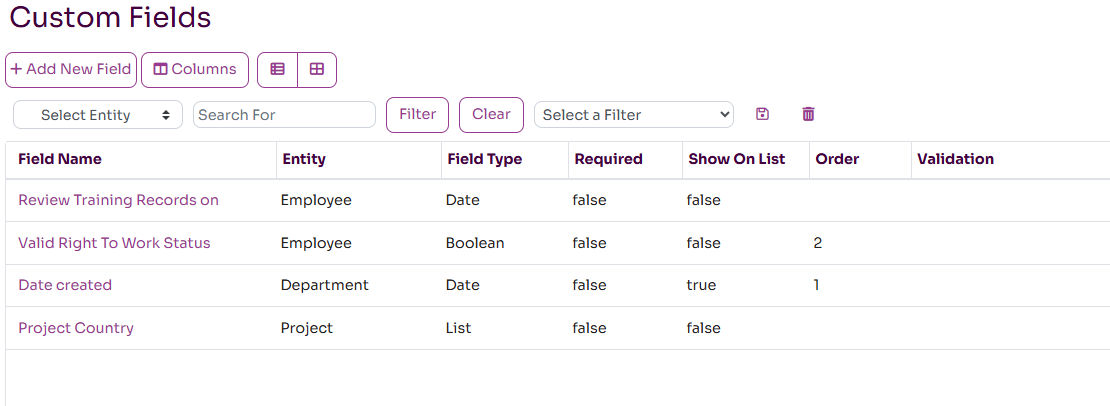
Custom Fields can be created for the following entities:
- Business Roles
- Checklists
- Companies
- Departments
- Employees
- Employee Contract
- Location
- Project
- Resource
- Skill
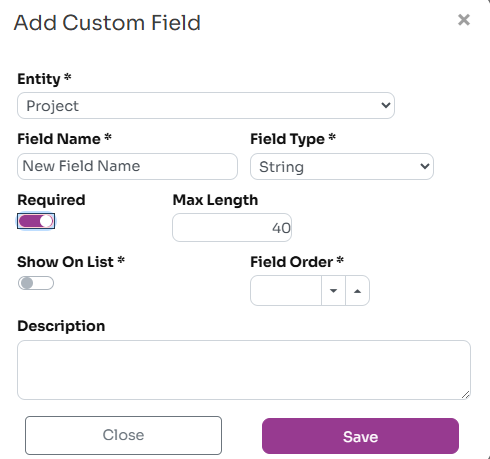
When creating or editing a custom field, the following data should be entered:
- Entity: select the entity to which you want to add the custom field from the list above
- Field Name: the name of the custom field as it will apear in the user interface
- Field Type: the data type of the field, choose from Boolean, Date, Integer, List, Number, URL and String
- Min/Max Value: for Integer and Number custom fields can set min and max values for validation
- Max Length: the max length of text that can be entered for String custom fields
- Related List: the list of values that are available when selecting type List. This could be an existing list such as Countries or you can create your own list via the Amin-Lists page.
- Required: indicates whether this custom field is mandatory when creating or updating a record
- Show On List: indicates whether this field should be shown as a grid column when listing records for the entity
- Field Order: allows you to specify the order in which custom fields appear. If left empty they are listed alphabetically.
- Description: the description of the field which will also appear as a tooltip.
Editing Custom Field Values
Once the field is created, it will appear on the relevant page in a Custom Fields section. The values can be entered as required and will be validated when trying to save the record based on the valuidation criteria configured for the custom field.

Import and Export
The various Excel import and export capabilities do not currently support custom fields but will in the near future.