Capturing Time Using the Task Timer
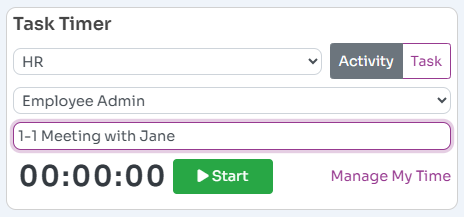
Workup has an in built task timer that allows you to capture time spent on an activity or a task in real-time by pressing a Start button to start capturing time. The Task Timer is available on your home page and on the Manage My Time page.
All time must be captured against a project and also an activity or task.
Time captured by the task timer automatically updates the associated user timesheet and can then flow through to reporting and billing.
Using The Task Timer
The Task Timer appears on your home page and the Projects-Timer page. The timer will start a stopwatch when you press start and stop it when you hit stop. The elapsed time is recorded against the select Project and Activity or Task. You can also add some notes to provide detail on what you are actually doing.
Manage My Time
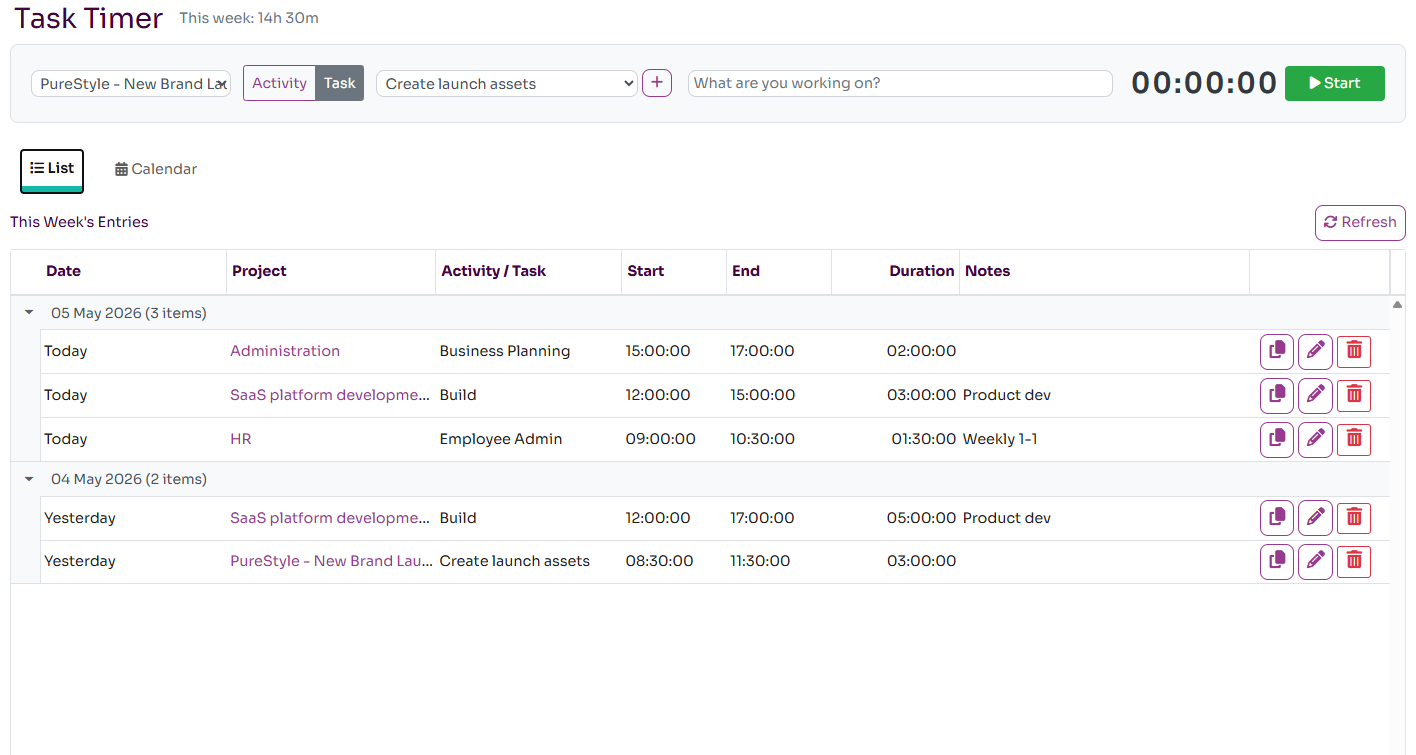
You can see detailed time detail by clicking on the Manage My Team button on the home page task timer or by going to the Projects-Timer page. This page allows you to start the task timer but also shows you the details of all your time entries for the current week. These are listed in order but can also be seen in a calendar view. You can edit or delete a task entry by pressing the appropita ebutton on the grid. There is also a Copy button that copies the Project and Activity/Task from the existing time entry to the task timer so you can restart work on that activity or task.
The calendar view shows the time entries as a weekly calendar, colour coded by project. You can double click a calendar entry to modify it.

Editing and Adding Time Entries
The time entries for the current week are listed on the Projects-Timer page and also on the associated Timesheet page. The Projects-Timer page allows the entries to be edited and also new entries to be added.
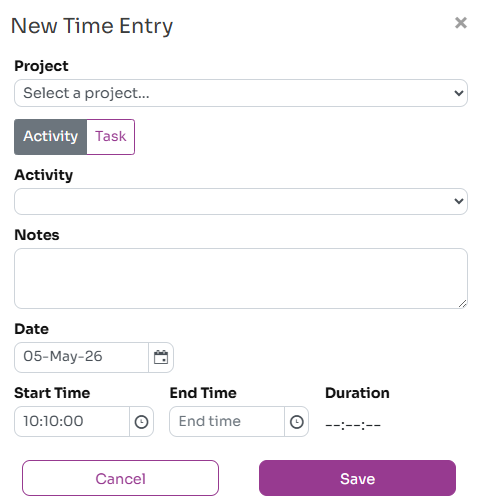
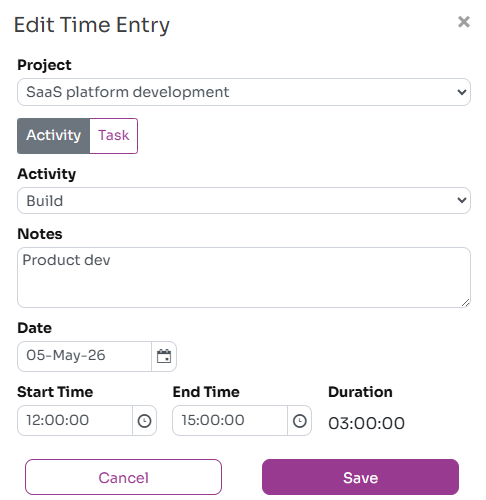
To edit a time entry you can click on the edit link next to each time entry, and this opens the Edit Time entry dialog. Here you can add notes, change the start and end time and event change the associated activity.
If you want to record some time in the past where you hadn't used the task timer, you can add new timeentries to the list by pressing the dd entry button. This will record time in the same way as the task timer but you must enter a start and an endtime. The associated timesheet will get automatically updated on save.